Pastoral Care Tracking Spreadsheet: Free Template for Churches
A free pastoral care log and people list for Google Sheets or Excel, with setup steps, the rules that keep it working, and signs you have outgrown it.
By Thomas Griffin, Owner and CEO
Published
A pastoral care tracking spreadsheet needs two tabs. The first is a care log with one row per contact: date, person, type of care, who gave it, a short note, and a follow-up with an owner and a date. The second is a people list with each person's last contact and next contact due. Download both free below.
Download the Free Pastoral Care Tracking Template
The template comes as two CSV files. A CSV file opens in Google Sheets, Excel, or Numbers, and nothing in it is locked.
- Download the care log (CSV): one row for each visit, call, card, or meal.
- Download the people list (CSV): one row for each person, with last contact, next contact due, and care status.
Each file has six example rows with made-up names, so you can see how a real week looks. Delete the examples when you start.
Many care leaders start a sheet on a hard week, when the list in their head grew too long to trust. If that is where you are, these two files are a good place to start. Below you will find how to set them up, the rules that keep them working, and how to tell when your church has outgrown them. To compare a spreadsheet with a notebook, a calendar, Trello, and care software, read how to track pastoral care.
What Goes in the Care Log
Start with the care log. Use one row per contact, not one row per person. A row per person turns into a long cell of notes that nobody can sort or count.
| Column | What to write | Example |
|---|---|---|
| Date | The day the care happened | 2026-11-03 |
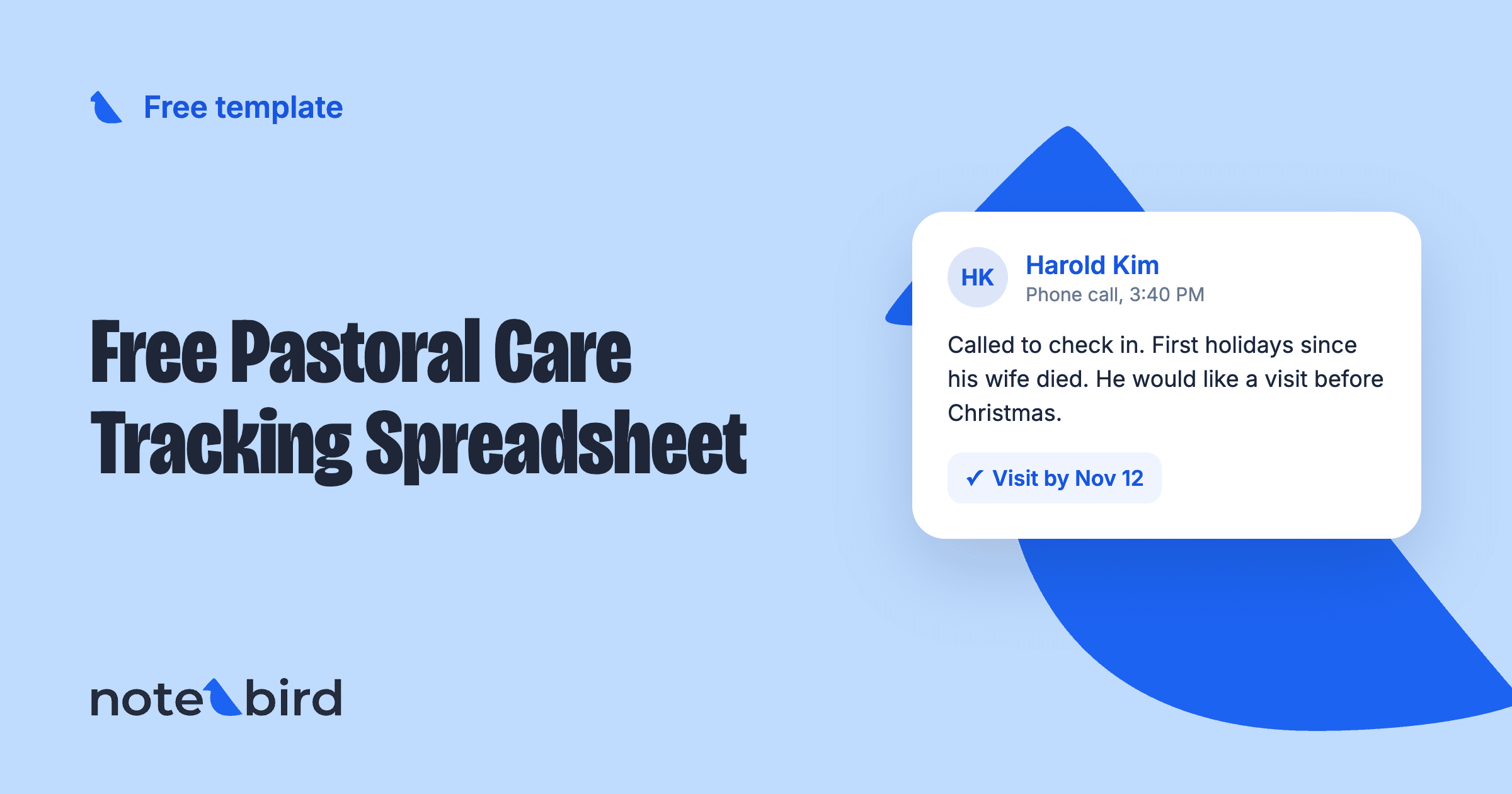
| Person | Full name, spelled the same way every time | Harold Kim |
| Type | Pick from a short list | Phone call |
| Who gave care | One name | Carol Benson |
| Notes (no private details) | One or two plain sentences | First holidays since his wife died. Wants a visit. |
| Follow-up needed | Yes or No | Yes |
| Follow-up owner | One name, never "the team" | Pastor Dan |
| Follow-up date | The day it should happen | 2026-11-12 |
| Done | Yes or No | No |
A good Type list for most churches: Home visit, Hospital visit, Homebound visit, Phone call, Text, Card, Meal, Prayer request, Grief follow-up, Other. Keep it under a dozen. If people invent new types, you cannot count them later.
The Notes column says "no private details" in its name on purpose. It reminds every person who types in it that the whole team will read it. More on that below.
What Goes in the People List
The people list answers a different question: who needs care next? It has one row per person or household.
| Column | What to write |
|---|---|
| Person | The same spelling as in the care log |
| Phone | The best number to reach them |
| Group | A care group, such as Homebound, Grief care, Hospital and recovery, New babies, or General |
| Last contact | The date of the most recent row for this person in the care log |
| Next contact due | When someone should reach out next |
| Care status | Active care, Watch, or Routine |
Use three simple care statuses:
- Active care: A current need such as illness, grief, a new baby, or a crisis. Contact every week or two.
- Watch: Something has changed, or you have not heard from them in a while. Contact this month.
- Routine: No known need. Contact on your normal rhythm, such as every three months.
Sort the list by Next contact due each week, and the people who need a call rise to the top.
How to Set It Up in Google Sheets
You can do all of this in about ten minutes.
- Download both CSV files from the links above.
- Make a new spreadsheet in Google Sheets. Name it "Pastoral Care Log."
- Import the care log. Click File, then Import, then Upload, and pick the care log file. Choose "Replace current sheet" and click Import. Google's help page on importing data into Sheets shows each option.
- Import the people list as a second tab. Click File, then Import again, pick the people list file, and choose "Insert new sheets."
- Rename the tabs. Right-click each tab and rename them "Care log" and "People."
- Freeze the header row on each tab: View, then Freeze, then 1 row.
- Add dropdowns. Select the Type column and click Insert, then Dropdown. Type your list of care types. Do the same for Follow-up needed, Done, and Care status. Google explains this in create an in-cell dropdown list.
- Share it with care. Click Share and add only the people who log care. Give them Editor access. Do not turn on "Anyone with the link."
- Delete the example rows and add your first real contact.
If you use Excel, the same layout works. Open the CSV files, then save each one as an Excel workbook so your formatting and dropdowns are kept.
Optional: Let the Sheet Fill In Dates for You
Two formulas save typing on the People tab. First, name two columns on the Care log tab. Select column A (Date), click Data, then Named ranges, and name it LogDates. Select column B (Person) and name it LogPeople.
Then put this in the Last contact cell for the first person (row 2), and copy it down:
=IF(COUNTIF(LogPeople,A2)=0,"",MAXIFS(LogDates,LogPeople,A2))
It finds the most recent date for that person in the care log. Format the column as a date.
Put this in Next contact due to set a 30-day rhythm:
=IF(D2="",TODAY(),D2+30)
Then make rows that are due or overdue turn red. On the People tab, select the cells from A2 down to the last row of column F, click Format, then Conditional formatting, choose "Custom formula is," and enter =AND($E2<>"",$E2<=TODAY()). Pick a red fill.
A person with no row in the care log yet shows as due today, so the people nobody has called stay on the list. If you already know someone's last contact date, add it as a row on the Care log tab before you paste the formulas, or it will be replaced. These formulas only work if every name is spelled the same way on both tabs. That is the first rule below.
Rules That Keep a Care Spreadsheet Working
A care sheet works as well as the habits around it. These rules matter more than any formula.
- One row per contact. Never add a second visit to an old row.
- One spelling per person. "Margaret Ellis" in one row and "Peggy Ellis" in the next will look like two people.
- One owner per follow-up. A name, not "the team" and not "someone."
- Every follow-up gets a date. "Soon" never comes.
- Log it the same day. Care that waits a week gets forgotten or changed in memory.
- No private details. Facts and next steps only. More on this below.
- Never delete rows. Mark them done. The old rows are your care history.
- One keeper. One person checks the sheet each week, fixes names, and chases open follow-ups.
- Store it in a church account. Not in one pastor's personal drive. If that person leaves, the history should stay.
- Use a filter view to sort. In Google Sheets, a normal filter changes the view for everyone. Google's help page on sorting and filtering notes that "anyone with access to your spreadsheet will find the filter too." A filter view applies only to you.
A Weekly Routine for the Care Spreadsheet
| When | What to do | Who |
|---|---|---|
| Same day as care | Add a row for each visit, call, card, or meal. | Whoever gave the care |
| Monday morning | Filter the care log for Done = No. Sort by Follow-up date. Text each owner their list. | Sheet keeper |
| Monday morning | Sort the People tab by Next contact due. Assign anyone overdue. | Sheet keeper |
| Staff or care team meeting | Review active care. Move people between Active care, Watch, and Routine. | Pastor and care team |
| First week of each month | Add birthdays, anniversaries, and the anniversary of a death for the month ahead. | Sheet keeper |
| End of each month | Count rows by Type for your board report. | Pastor or care coordinator |
For a full guide to the monthly numbers, see how to report pastoral care to your board.
What to Keep Out of a Shared Care Spreadsheet
A spreadsheet has one level of access. If someone can open it, they can read every row. Microsoft says worksheet protection is not a security feature, and Google warns that people can copy and export a protected sheet.
So keep these out of the shared sheet:
- Diagnoses, test results, and medicines.
- Mental health, addiction, or counseling topics.
- Marriage or family conflict.
- Money problems and benevolence help.
- Anything said in confidence.
Write the fact and the next step instead. "Hospital visit. Prayed together. Call Friday." is enough for the team to act. For more on who should see care notes and why, read does HIPAA apply to churches.
When You Outgrow the Spreadsheet
A spreadsheet is a fair way to start, but some limits no template can fix. Access is all or nothing, a follow-up date sends no reminder, and after a year one person's history is spread across 40 rows. Watch for these signs:
- More than three or four people add rows.
- Follow-up dates pass, and nobody notices until someone asks.
- You keep a second, private file for the notes that should not be shared.
- The sheet keeper is on vacation, and the Monday review does not happen.
If two or three of these are true, the sheet probably costs more time than it saves. That is not a failure. It means your care has grown past what one file can hold.
How to Move From the Spreadsheet to Notebird
Notebird is pastoral care software for churches. It keeps the parts of your sheet that work, like one record per contact and an owner for every follow-up, and adds what a sheet cannot do.
- Import your people for free. Notebird imports a people list from a CSV file at no cost. If your church uses Planning Center, Breeze, or Church Windows, connect it and your people sync in instead.
- Make care groups that match your Group column, such as Homebound and Grief care. Give each volunteer access to the groups they serve.
- Move open follow-ups as tasks. Filter the care log for Done = No, and make a task for each one with the same owner and date.
- Add the dates to remember as milestones: birthdays, anniversaries, and the loss of a loved one. They can show every year in the Early Bird Report.
- Write a short summary for each person in active care as their first update. You do not need to retype every old row.
- Keep the old sheet as a read-only archive, and pick a start date. From that day, new care goes in Notebird.
After that, each visit, call, or card is an update on the person's profile, logged from any phone. Sensitive updates can be restricted so only the Organization Owner, Organization Admins, and Care Admins can read them. And the Pulse view shows how long it has been since each person had an update, without a formula.
A spreadsheet is a good first step. When it starts to slip, see how Notebird handles church follow-up, or find more free tools on our free resources page. Your people list imports free, and the 14-day trial needs no credit card.